
TiviMate IPTV Player unter Windows 11 installieren (vollständige Anleitung 2026)
If you're trying to install TiviMate IPTV Player on Windows 11, here's the short answer: TiviMate does not have a native Windows 11 application, but you can run it safely using an Android emulator like BlueStacks or LDPlayer. This guide walks you through exactly how to set that up, from choosing an emulator to installing the TiviMate APK (refer to our TiviMate Fire TV Stick sideloading guide for a comparison of TV-based setups), adding your IPTV playlist, and optimizing performance to prevent TiviMate buffering issues on your PC.
- TiviMate is an Android TV app — there is no official Windows version, so it must run through an emulator.
- BlueStacks is the easiest and most beginner-friendly method; LDPlayer is a strong lightweight alternative.
- The full setup takes about 20–30 minutes, including emulator installation and playlist configuration.
- Always download TiviMate from its official source — never use cracked or modified APKs.
- Leistung depends heavily on your PC's RAM, CPU, and hardware acceleration settings.
Kann man TiviMate unter Windows 11 installieren?
Neint directly. TiviMate is built exclusively for Android TV, and there is no official Windows 11 application from the developer. This is because TiviMate is designed around the Android TV interface and remote-based navigation, not a traditional desktop UI.
The good news is that Windows 11 can run Android apps through an emulator — a program that creates a virtual Android environment on your PC. Once TiviMate is installed inside that environment, it runs essentially the same as it would if you were to sideload TiviMate onto Fire TV Stick natively, just controlled with your mouse and keyboard instead of a physical remote.
Kurzer Vergleich
| Methode | Native Windows-Unterstützung | Für Einsteiger geeignet |
|---|---|---|
| Emulator (BlueStacks/LDPlayer) | Nein (virtuelles Android) | Ja |
| Android-Studio-Emulator | Nein (virtuelles Android) | Nein |
| Direkte Windows-Installation | Nicht verfügbar | Nicht zutreffend |
Voraussetzungen für die TiviMate-Installation
Stellen Sie vor dem Start sicher, dass Ihr System die folgenden Mindestanforderungen erfüllt:
- Windows 11 (or Windows 10) with the latest updates installed
- At least 4GB of RAM (8GB+ recommended for smoother multitasking)
- A modern multi-core CPU with virtualization support enabled in BIOS
- At least 5GB of free storage for the emulator and app data
- A stable internet connection, ideally 15+ Mbps for HD/4K streams
- An Android emulator installed (BlueStacks or LDPlayer)
- The official TiviMate installer package
- An active IPTV subscription or playlist (M3U URL or Xtream Codes login)
Die besten Möglichkeiten, TiviMate unter Windows 11 auszuführen
| Methode | Schwierigkeitsgrad | Empfehlung |
|---|---|---|
| BlueStacks | Einfach | ⭐⭐⭐⭐⭐ |
| LDPlayer | Einfach | ⭐⭐⭐⭐ |
| Android-Studio-Emulator | Fortgeschritten | ⭐⭐⭐ |
| Windows Subsystem for Android | Fortgeschritten (Verfügbarkeit variiert) | ⭐⭐ |
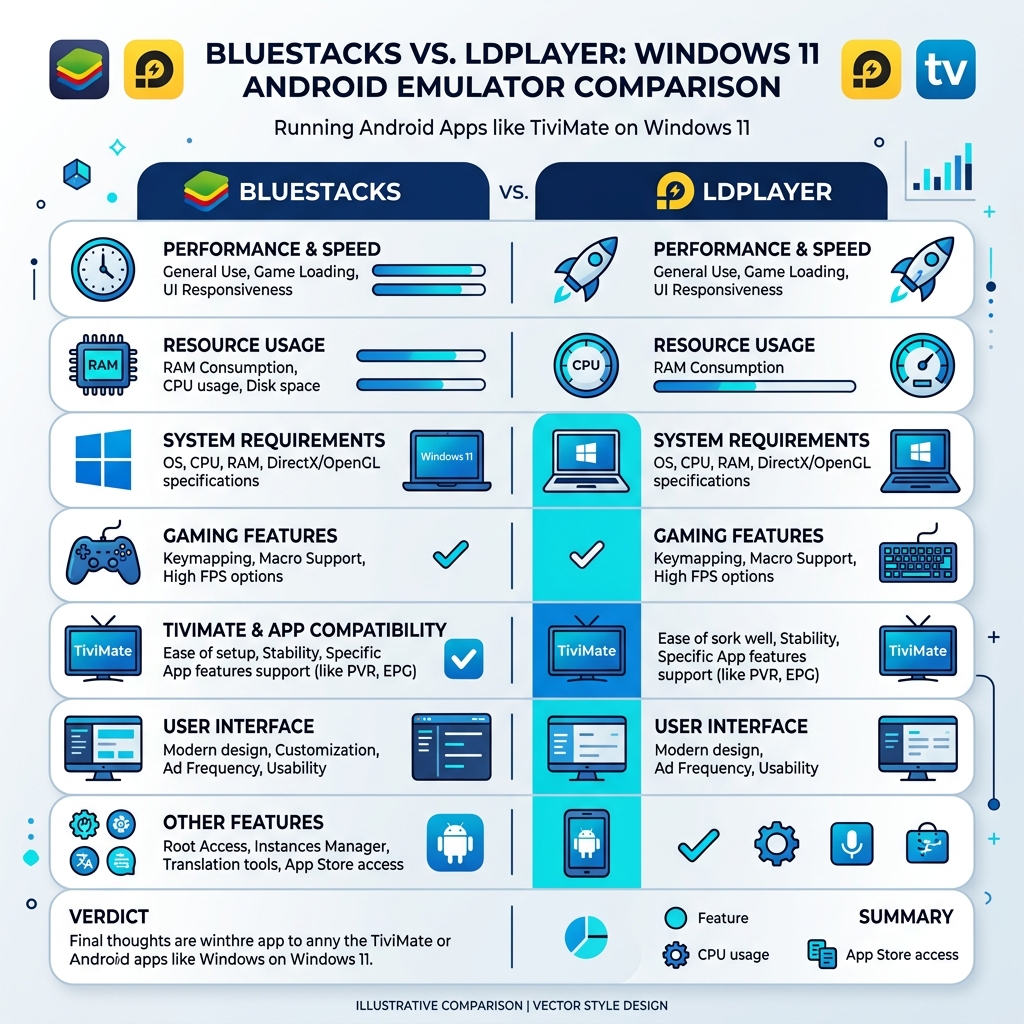
Bildunterschrift: Direkter Vergleich der verfügbaren Emulatoren
BlueStacks is generally the best starting point — it's polished, actively maintained, and has excellent compatibility with streaming apps like TiviMate.
LDPlayer is a solid alternative, especially on lower-spec machines, since it's built with a focus on performance and lower resource usage.
Android Studio's emulator is powerful but intended for developers; it requires more manual configuration and isn't optimized for everyday streaming use.
Windows Subsystem for Android allowed sideloading Android apps in some earlier Windows 11 builds, but its availability has changed, so it shouldn't be relied on as a guaranteed method — check current Microsoft documentation before attempting this route.
Methodee 1: TiviMate mit BlueStacks installieren
- Herunterladen BlueStacks: Go to the official BlueStacks website and download the latest version for Windows.
- Install BlueStacks: Run the installer and follow the on-screen prompts. This may take several minutes depending on your system specs.
- Herunterladen the TiviMate APK: Open a browser inside BlueStacks (or download it beforehand on Windows and drag the file into BlueStacks) and get the APK using the official TiviMate APK download link. Avoid third-party repositories to prevent installing a modified file.
- Install the APK: Drag and drop the downloaded APK file onto the BlueStacks home screen, or use the built-in APK installer icon. BlueStacks will install it automatically.
- Launch TiviMate: Find the TiviMate icon on the BlueStacks home screen and click to open it.
- Add Your IPTV Playlist: Follow the on-screen prompts to add your M3U URL or Xtream Codes login.
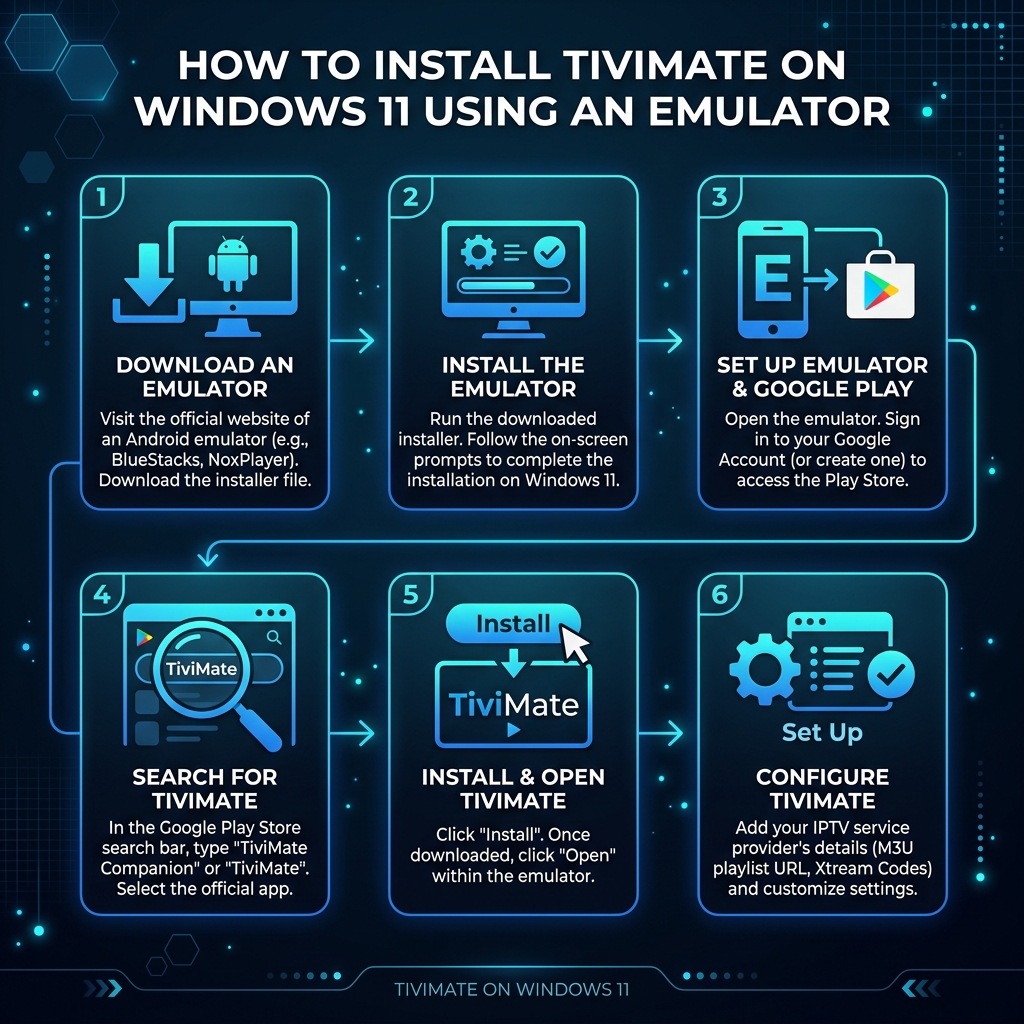
Bildunterschrift: Der gesamte Installationsablauf auf einen Blick
Methodee 2: TiviMate mit LDPlayer installieren
- Herunterladen LDPlayer: Visit the official LDPlayer website and download the Windows installer.
- Install LDPlayer: Run the setup file and complete installation, allowing any required Windows permissions.
- Open the Browser: LDPlayer includes a browser shortcut on its home screen. Use the browser to navigate to our official site and download the TiviMate APK.
- Install the TiviMate APK: Herunterladen the APK directly within LDPlayer's browser, then open the file to trigger the installer. (If the install button is grayed out, ensure LDPlayer's "Unknown Sources" equivalent permission is enabled in settings).
- Launch TiviMate: Click the new TiviMate icon on the LDPlayer home screen to open the app.
- Add Your IPTV Playlist: Enter your M3U or Xtream Codes details to finish setup.
So fügen Sie Ihre IPTV-Playlist hinzu
Once TiviMate is installed on either emulator, adding your M3U playlist or Xtream Codes credentials works the same way it would on a streaming stick:
- M3U URL: Open TiviMate, select Add Playlist > M3U Playlist, and paste the URL provided by your IPTV service.
- Xtream Codes API: Choose the Xtream Codes login option and enter your server address, username, and password exactly as supplied by your provider.
- Local Playlist File: If you have an M3U file saved locally, you can import it directly by choosing the "Load from file" option and browsing to the file inside the emulator's file system.
- EPG Setup: Add your EPG (electronic program guide) source URL under Settings > EPG if it isn't automatically included with your playlist, so channel schedules display correctly.
TiviMate für Windows konfigurieren
Mit einigen Anpassungen lässt sich TiviMate auf einem PC deutlich komfortabler bedienen:
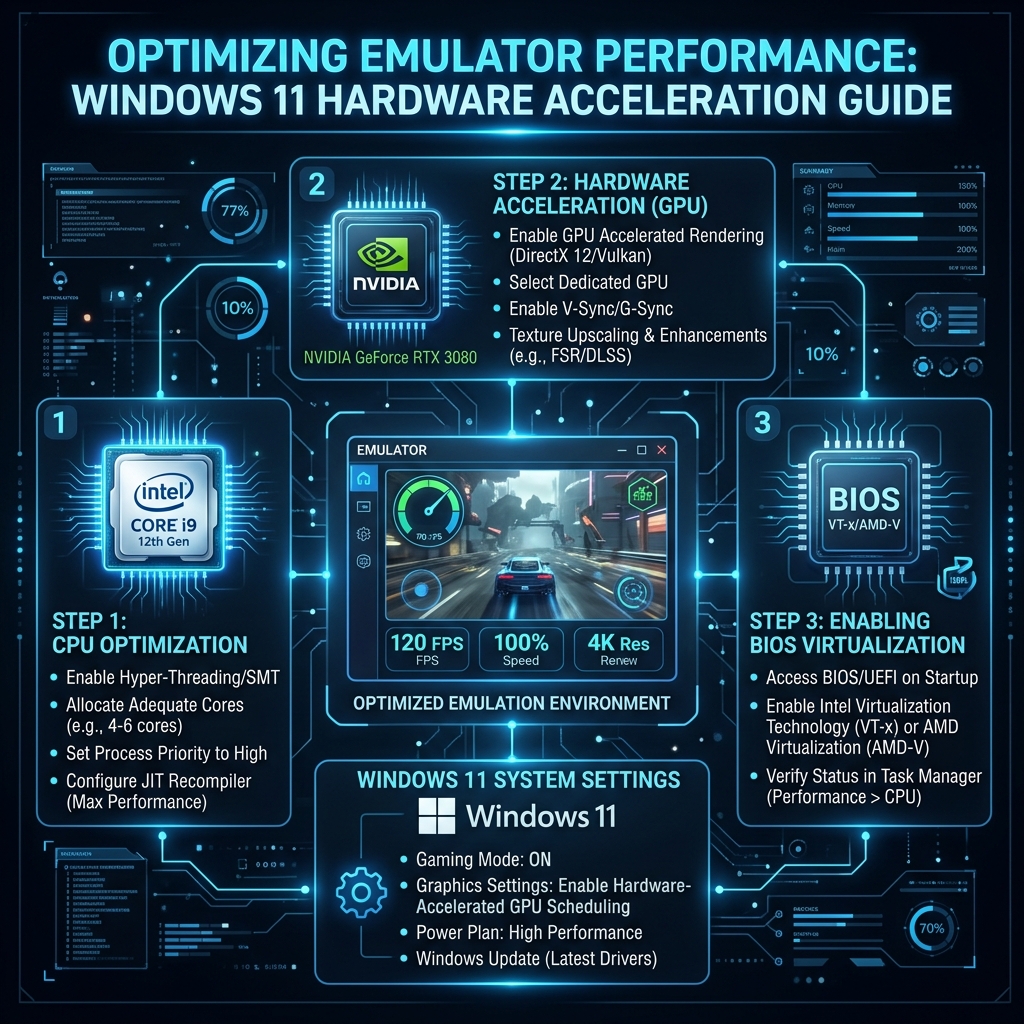
Bildunterschrift: Empfohlene Leistungseinstellungen für eine flüssige Wiedergabe
- Full Screen Mode: Enable full-screen mode in your emulator's display settings for a more immersive, TV-like experience.
- Keyboard Shortcuts: Both BlueStacks and LDPlayer let you map keyboard keys to Android TV remote functions (like Enter for OK, arrow keys for navigation), which you can customize in the emulator's keymap editor.
- Maussteuerung: Right-click typically functions as a "back" button in most emulators, mimicking the remote's back key.
- Hardware Acceleration: Enable hardware acceleration (GPU virtualization) in your emulator's settings and in your PC's BIOS if not already active — this significantly improves video playback smoothness.
- Emulator Settings: Allocate more CPU cores and RAM to the emulator if your system has resources to spare, under its engine settings.
- Leistung Tweaks: Close unnecessary background applications on Windows while streaming to free up system resources for the emulator.
Häufige Probleme und Lösungen
- APK won't install: Confirm you downloaded the correct APK architecture (most emulators use standard Android APKs) and that the file wasn't corrupted during download — try re-downloading from the official source.
- Emulator crashes: Update your emulator to the latest version and make sure your GPU drivers on Windows are current.
- Black screen on launch: Toggle hardware acceleration off and back on in the emulator's settings, or restart the emulator.
- Playback issues: Check that your IPTV provider's stream is working on another device, and verify the emulator has enough allocated RAM/CPU.
- Buffering: Increase TiviMate's buffer size setting and confirm your internet speed meets your provider's stream bitrate requirements.
- Playlist won't load: Re-verify your M3U URL or Xtream Codes credentials for typos, and confirm your subscription is currently active.
- EPG missing: Add or re-add your EPG source URL under TiviMate's EPG settings and allow time for the guide data to populate.
- Slow performance: Allocate additional RAM/CPU cores to the emulator, and close other resource-heavy applications running on Windows.
- Audio problems: Check Windows sound settings to confirm the emulator is set as the active audio output device.
- GPU acceleration issues: Update your graphics drivers and ensure virtualization is enabled in your PC's BIOS settings.
TiviMate unter Windows im Vergleich zum Fire TV Stick
| Kriterium | Windows 11 (Emulator) | Fire TV Stick |
|---|---|---|
| Bedienkomfort | Mittel (Einrichtung erforderlich) | Einfach (natives Android TV) |
| Leistung | Abhängig von der PC-Ausstattung | Konstant, für die App optimiert |
| Fernbedienungsunterstützung | Nein (nur Maus/Tastatur) | Ja (physische Fernbedienung) |
| Tastaturunterstützung | Ja | Nein (außer separat gekoppelt) |
| Maussteuerung | Ja | Nein |
| Hardware-Decodierung | Abhängig von GPU-/Emulator-Einstellungen | Integriert und im Allgemeinen zuverlässig |
| Empfohlen für | Nutzer, die einen größeren Bildschirm oder eine PC-basierte Einrichtung bevorzugen | Nutzer, die eine einfache, auf den Fernseher ausgerichtete Nutzung wünschen |
Windows bietet mehr Flexibilität (größere Monitore, Steuerung per Tastatur und Maus sowie Multitasking). Ein Fire TV Stick ermöglicht jedoch in der Regel ein konsistenteres Streaming-Erlebnis ohne aufwendige Einrichtung, da TiviMate nativ für diese Umgebung entwickelt wurde.
Die besten Alternativen für Windows
Wenn Ihnen die Einrichtung eines Emulators zu aufwendig ist oder Sie eine native Windows-Lösung bevorzugen, kommen diese Alternativen infrage:
- VLC: A free, open-source media player that can play M3U playlists directly on Windows without any emulator, though it lacks TiviMate's TV-guide style interface.
- Kodi: A flexible, native Windows media center app that supports IPTV through add-ons, offering more customization at the cost of a steeper learning curve.
- IPTV Smarters Pro: Has a native Windows application, making it a strong alternative if you specifically want a desktop-first IPTV player experience.
- MyIPTV Player: A lightweight, native Windows Store app designed specifically for M3U and Xtream Codes playlists.
- ProgDVB: A native Windows IPTV/DVB player with recording features, well-suited to users who want DVR-style functionality without an emulator.
Häufig gestellte Fragen
Ja, allerdings nur über einen Android-Emulator wie BlueStacks oder LDPlayer, da TiviMate keine native Windows-11-Anwendung bietet.
Nein. TiviMate wurde ausschließlich für Android TV entwickelt und ist nicht offiziell für Windows erhältlich. Für die Nutzung auf einem PC muss Android emuliert werden.
Derzeit nicht. Da es keine native Windows-Version gibt, benötigen Sie für TiviMate auf einem PC einen Android-Emulator oder eine vergleichbare virtuelle Android-Umgebung.
BlueStacks ist die einsteigerfreundlichste und am weitesten verbreitete Option. LDPlayer ist eine gute, ressourcenschonende Alternative für weniger leistungsstarke PCs.
TiviMate bietet eine kostenlose Version mit den grundlegenden Funktionen sowie ein optionales Premium-Abonnement, das mehrere Playlists, DVR-Aufnahmen und Catch-up-TV freischaltet.
Laden Sie die aktuelle APK von der offiziellen TiviMate-Website herunter und installieren Sie sie im Emulator über die bestehende App. Ihre Playlists und Einstellungen bleiben normalerweise erhalten.
Ja, TiviMate unterstützt neben standardmäßigen M3U-Playlists auch die Anmeldung über die Xtream-Codes-API vollständig.
Ja, M3U- und M3U8-Playlist-URLs gehören neben Xtream Codes zu den zentral unterstützten Formaten von TiviMate.
Fazit
TiviMate gibt es nicht als native Windows-11-App. Sobald Sie jedoch einen Android-Emulator wie BlueStacks oder LDPlayer eingerichtet haben, lässt sich die Anwendung unkompliziert auf Ihrem PC ausführen. Installieren Sie anschließend die offizielle TiviMate-APK, fügen Sie Ihre IPTV-Playlist hinzu und passen Sie einige Leistungseinstellungen an. So erhalten Sie ein flüssiges Streaming-Erlebnis mit TV-Programmführer direkt auf Ihrem Desktop-PC oder Laptop.
If you'd rather skip the emulator route entirely, native alternatives like IPTV Smarters Pro or VLC are worth considering. Otherwise, once you're set up, check out our guides on pricing and premium details to get the most out of your setup across all your devices.