TiviMate IPTV Player auf NVIDIA Shield installieren
In der Cord-Cutting-Community gilt die Kombination aus TiviMate Player und NVIDIA Shield TV Pro weithin als erstklassiges IPTV-Setup: eine leistungsstarke Softwareoberfläche auf besonders leistungsfähiger Android-TV-Hardware. Dieser Leitfaden erklärt, welches Shield-Modell wirklich geeignet ist, die offiziellen und alternativen Installationsmethoden, die Premium-Aktivierung sowie wichtige Einstellungen für KI-Upscaling, AFR-Ruckler und Audio-Passthrough.
New to the TiviMate app itself? See what it is, what it does, and supported playlist formats on our main guide first.
- The TiviMate app is officially distributed on Android TV through the Google Play Store — installation is simpler here than on almost any other device.
- Which Shield you own matters a lot. The cylindrical Shield TV ("Tube") and the boxier Shield TV Pro perform very differently under TiviMate Player specifically — covered in detail below.
- Premium can't be purchased directly on the Shield itself — it requires the Companion app on a separate device, the same as FireStick.
- A handful of non-obvious settings (AFR handling, AI upscaling, audio passthrough) make a bigger difference on Shield hardware than the defaults suggest.
Shield TV oder Shield TV Pro: Warum dein Modell wichtig ist
Diesen Abschnitt solltest du vor der Installation lesen: Die beiden aktuellen Shield-Modelle unterscheiden sich deutlich, sobald TiviMate Player im Hintergrund eine große Playlist und einen umfangreichen EPG verwaltet.
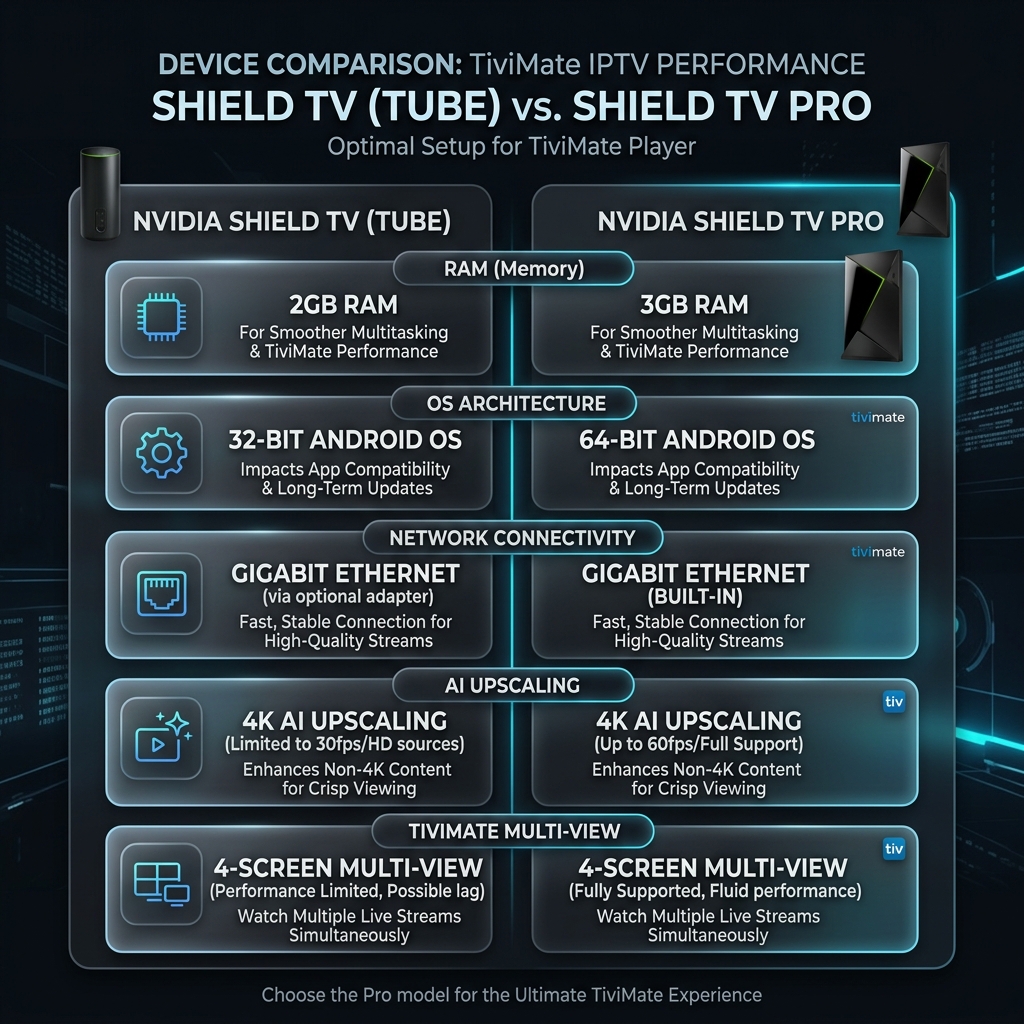
| Feature | Shield TV (cylindrical "Tube") | Shield TV Pro |
|---|---|---|
| RAM | 2GB | 3GB |
| OS Architecture | 32-bit | 64-bit |
| Storage | 8GB | 16GB |
| Ethernet | Wi-Fi only | Gigabit Ethernet |
| USB Ports | microSD slot only | 2× USB 3.0 |
| AI Upscaling | Capped at 30fps | Full 60fps support |
| Multi-View | Not recommended | Handles 4-screen Multi-View cleanly |
| Best For | Casual, single-playlist use | Large playlists, heavy EPGs, Multi-View, local DVR |
The honest assessment: the Shield TV Pro handles large IPTV playlists and heavy EPGs without strain, and its USB ports make it simple to attach a drive for local DVR recording. The standard Shield TV — the cylindrical "Tube" model — has a real reputation in the TiviMate Player community for crashing and freezing. TiviMate Player can be memory-hungry while updating the guide in the background, and the Tube's 2GB RAM ceiling on a 32-bit OS causes the app to force-close repeatedly under that load. If you're buying a Shield specifically to run TiviMate Player, the Pro is the one to get. If you already own a Tube, it's still usable — see the dedicated troubleshooting section below for the specific settings that keep it stable.
Warum das NVIDIA Shield als ideales Gerät für TiviMate Player gilt
A few concrete hardware and software advantages explain why this pairing has the reputation it does:
- Native Android TV, no workarounds. Installation works exactly like any other Android TV app — no sideloading required in the standard case.
- Google Play Store access means official, verified installs with automatic updates.
- The Tegra processor handles large channel lists and EPG data without the slowdown you'll see on budget hardware.
- Gigabit Ethernet (Pro model) gives IPTV's most reliable fix — a wired connection — without needing a USB adapter workaround like FireStick requires.
- Hardware decoding offloads video decode work from the CPU, reducing stutter.
- AI upscaling can sharpen lower-resolution streams (a lot of IPTV sports feeds are still 720p/1080p) for a noticeably better picture on a 4K display.
Vorbereitung
- An NVIDIA Shield TV or Shield TV Pro, set up and connected to your network
- A Google account signed into the Shield (required for Play Store access)
- A stable internet connection — wired Ethernet strongly recommended on the Pro if buffering is a concern
- An active IPTV subscription (TiviMate Player doesn't supply one)
- Your playlist URL (M3U) or Xtream Codes login (server URL, username, password)
Methode 1: Installation über den Google Play Store (empfohlen)
Google Play Store öffnen
Google Play Store öffnen from your Shield's home screen Apps row.
Nach TiviMate suchen
Suchen for "TiviMate IPTV Player" (developer: Armobsoft FZE) using your remote or a connected keyboard.
App installieren
Select Install. Herunterladen and installation begin automatically.
TiviMate öffnen
Open the app directly from the Play Store, or find it in your app list afterward.
Einrichtungsbildschirm prüfen
Confirm the setup screen appears, prompting you to add a playlist — this means the install completed successfully.
Methode 2: APK manuell installieren (Alternative)
Only necessary if TiviMate Player is temporarily delisted or regionally blocked on your account — always try Method 1 first.
Using the Shield's USB ports (Pro model advantage):
- Herunterladen the APK to a PC and save it to a USB drive formatted FAT32 or exFAT.
- Plug the drive into the Shield.
- Go to Settings → Security & Restrictions and turn Unknown Sources on.
- Install a file manager app (e.g. X-plore File Manager) from the Play Store.
- Open the file manager, navigate to the USB drive, and select the APK to install.
Using the Herunterladener app instead:
Install Herunterladener from the Play Store, open it, and enter shortcode 272483 (verify this is still live before relying on it, or use the direct link from our download page).
Premium kaufen und aktivieren (bitte vor dem Kauf lesen)
This catches people out on Shield the same way it does on FireStick: you cannot purchase TiviMate Premium directly inside the app on the Shield. TiviMate Player requires its Companion app for licensing regardless of device.
- Herunterladen the TiviMate Companion app from the Google Play Store on a separate Android phone or tablet. (No Android device at all? Use an emulator like BlueStacks on a PC.)
- Open the Companion app, create an account, and purchase the Yearly (~$9.99) or Lifetime (~$33.99) subscription.
- Zurück on your Shield, open the TiviMate app, go to Settings → Unlock Premium, and log in with those exact Companion app credentials. Features unlock immediately. Learn more on our TiviMate Premium page.
Playlist und EPG einrichten
- From the setup screen, choose Add Playlist, select M3U, and paste your playlist URL — or choose Xtream Codes and enter your server URL, username, and password.
- Add your XMLTV EPG URL under playlist settings if your provider supplies one separately.
- Use the channel editor to reorder, hide, or group channels.
- Mark frequently watched channels as favorites.
- Build custom groups (Sports, News, Kids) to keep large playlists navigable.
- If your provider supports catch-up/replay via Xtream Codes, it appears automatically once the playlist loads.
Empfohlene Grundeinstellungen für Shield
| Setting | Recommended | Why |
|---|---|---|
| Hardware Decoder | On | Offloads decoding to the Shield's chip |
| Buffer Size | Medium-High (2–4 sec) on Pro; Medium or lower on the Tube | Reduces stutter without exhausting the Tube's limited RAM |
| Auto Frame Rate | See the AFR section below | Matches refresh rate to content, but the handshake can cause issues |
| Audio | Hardware passthrough enabled | Best compatibility with most streams |
| Multi-View | Pro only | The Tube's RAM can't reliably support it |
| EPG Update Schedule | Every 12–24 hours | Keeps guide data current without excess load |
| Recording | Only if local/external storage is available | Needs real storage headroom to function |
Die wichtigsten Profi-Einstellungen für Shield
These go beyond the baseline table above — they're the specific tweaks that separate a good Shield setup from a great one.
KI-Upscaling: Sportübertragungen in 720p/1080p schärfer darstellen
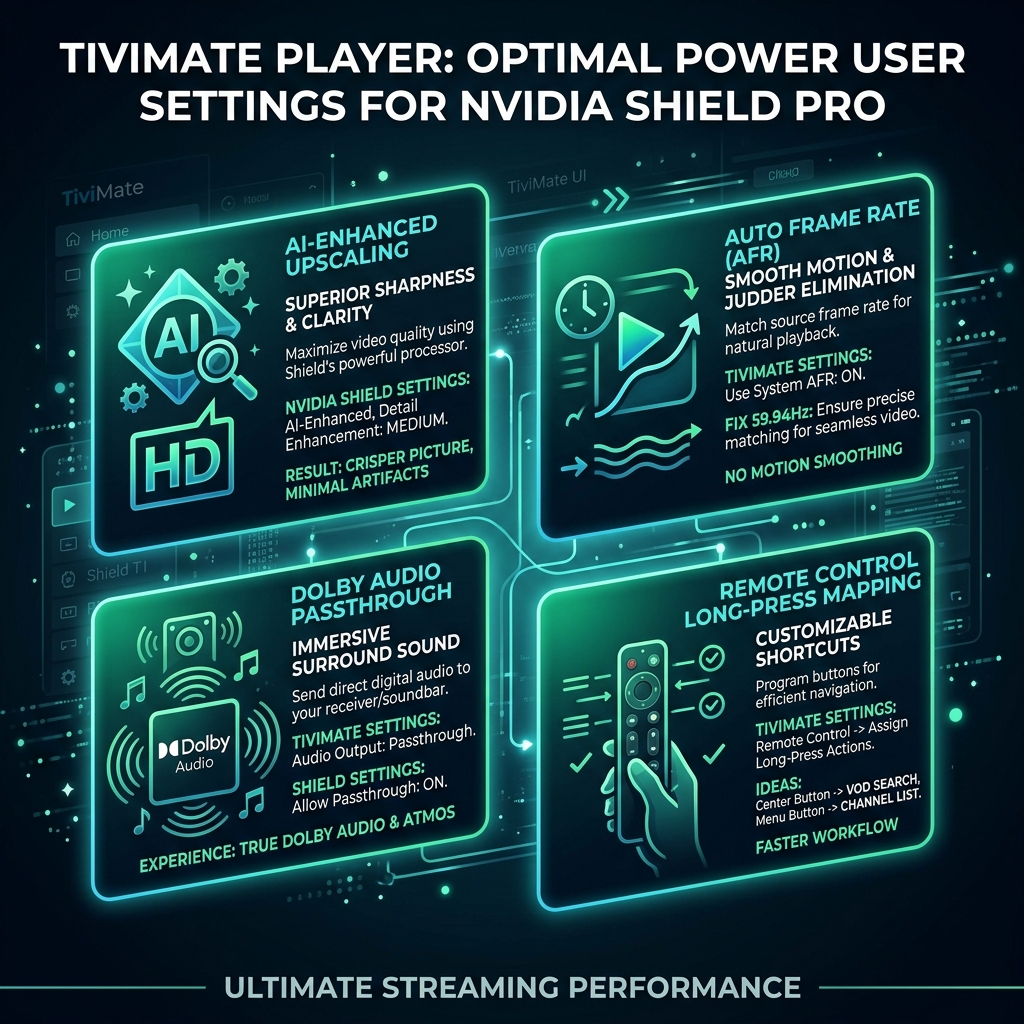
Go to Shield Settings → AI Upscaling, select AI-Enhanced, and set detail enhancement to Medium — High frequently looks over-processed and artificial on live sports specifically. Inside the TiviMate app, make sure Settings → Playback → Video Decoder is set to Hardware.
The Pro vs. Tube gap matters here too: the Shield Pro supports AI upscaling at 60fps, the standard for live sports broadcasts. The Tube caps out at 30fps for AI upscaling, meaning it falls back to basic scaling on sports content specifically — one more reason the Pro is the better pick if sports are a priority.
AFR-Ruckler und schwarze Bildschirme beim Senderwechsel beheben
Auto Frame Rate matches the Shield's output to the broadcast's frame rate, but the HDMI handshake this triggers often causes a 1–2 second black screen or violent stutter when switching channels. Two approaches, in order of what most power users actually settle on:
- The built-in fix: go to Settings → Playback → Auto Frame Rate, set the AFR delay to 1–2 seconds, and increase Buffer Size to Medium or Large. This pre-loads the stream while the display renegotiates, which reduces (but doesn't eliminate) the black screen.
- The universal fix, and what most experienced users actually recommend: disable AFR entirely inside the TiviMate app, and instead set the Shield's system-wide display refresh rate to a fixed 59.94Hz or 60Hz. You'll get a small amount of judder on 24fps cinematic content, which most people find far more tolerable than the TV blacking out every time they change a channel.
Audio-Passthrough für Dolby Atmos / TrueHD
To send raw surround sound directly to an AV receiver or soundbar instead of having the Shield decode it internally: go to Settings → Device Preferences → Display & Sound → Advanced Sound Settings, and turn Dolby Audio Processing OFF. If your TV doesn't support eARC, make sure the Shield is plugged directly into the receiver or soundbar rather than routed through the TV.
Shield-Fernbedienung für IPTV optimieren
The Shield remote's default mapping isn't built with IPTV navigation in mind. Under TiviMate Player Settings → Remote Control, these long-press remaps are worth setting up:
- Long Zurück → "Return to player" — lets you dig deep into the guide and snap straight back to full-screen live TV instead of repeatedly pressing Zurück.
- Long Down → "Multi-View" (Pro model).
- OK/Select → "Show info panel and control panel" for quick access to stream options.
Worth knowing: the Shield remote's Netflix button is large and easy to bump by accident. The "Button Mapper" app from the Play Store lets you disable or reassign it system-wide, separate from anything inside TiviMate Player itself.
TiviMate Player Free oder Premium auf Shield
| Feature | Free | Premium |
|---|---|---|
| Playlists | Limited | Unlimited |
| Recording (DVR) | No | Yes |
| Multi-View | No | Yes |
| Catch-Up | Limited | Full support |
| Favorites | Yes | Yes |
| Zurückup & Restore | No | Yes |
| UI Customization | Basic | Advanced |
Casual, single-playlist users are usually well covered by the free tier. Anyone running multiple playlists, recording to local or network storage, or using Multi-View on a Pro will find Premium worth the cost fairly quickly. Full breakdown on our TiviMate Premium page.
Fehlerbehebung speziell für das Shield-TV-„Tube“-Modell
If you own the cylindrical Shield TV and TiviMate Player keeps freezing or crashing to the home screen, these are the fixes power users actually rely on, not generic "restart it" advice:
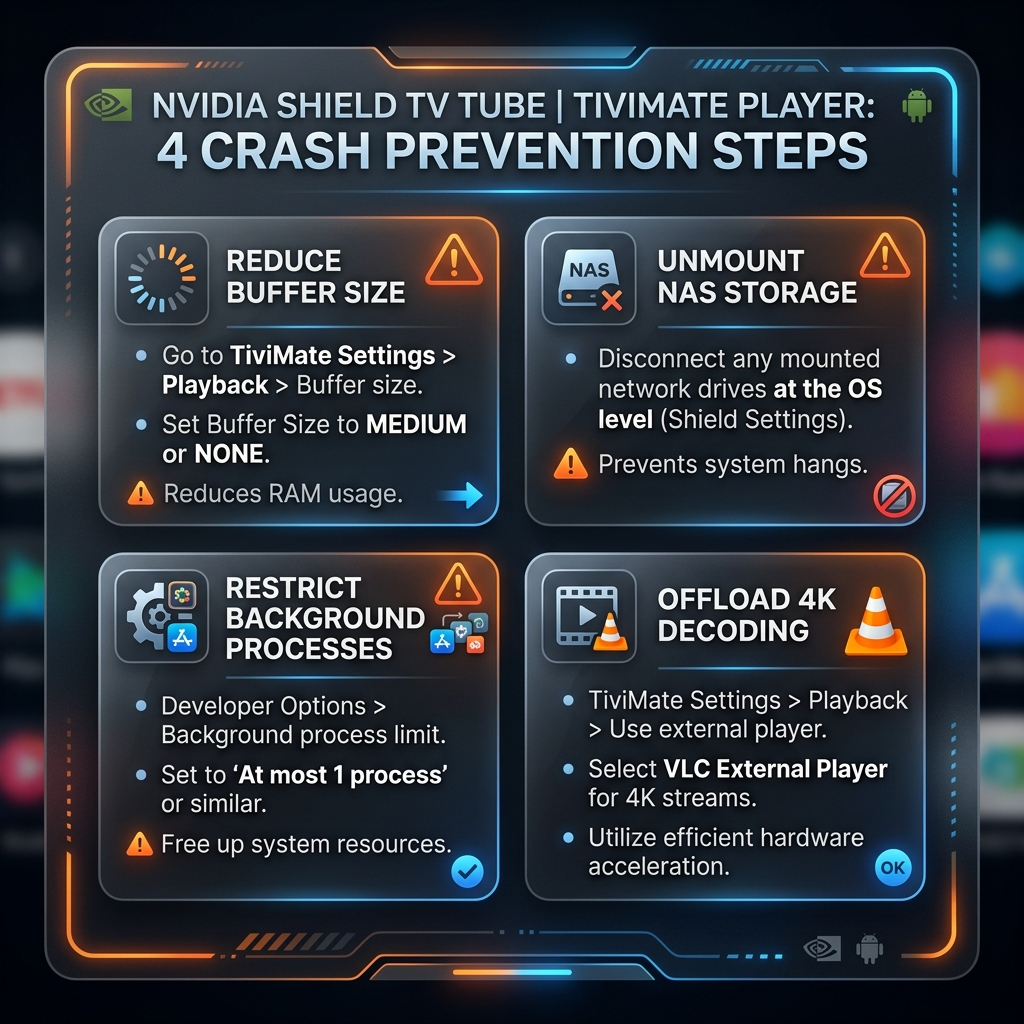
- Reduce buffer size. Set Playback → Buffer Size to Medium or None — "Extra Large" will exhaust the Tube's 2GB of RAM quickly.
- Unmount any network storage. A known issue causes crashes if a NAS/SMB share is mounted in the Shield's system storage — unmount it at the OS level, not just inside TiviMate Player.
- Restrict background apps. In the Shield's Developer Options, set the "Zurückground process limit" to restricted, freeing more RAM for the app itself.
- Offload to an external player. If 4K high-bitrate streams still crash it, set TiviMate Player's Playback settings to use VLC as an external player, moving the decoding strain off the app.
Häufige Installationsprobleme
- TiviMate Player won't install: Confirm your Shield's software is current under Settings → Über uns → System Update.
- Not showing in the Play Store: Try searching the exact listing name ("TiviMate IPTV Player"), and confirm your Google account's region supports the listing — this is almost always regional, not a device compatibility issue.
- APK sideload failed: Confirm Unknown Sources is enabled for the specific app you're using to install it, and re-download in case the file was corrupted mid-transfer.
- Playlist won't load: Double-check your M3U URL or Xtream Codes credentials for typos, and confirm your subscription is active.
- Buffering: Switch to wired Ethernet if you're on a Pro and currently using Wi-Fi, or lower buffer/stream quality settings — full diagnostic steps in our buffering guide.
- EPG missing: Verify your XMLTV URL is entered correctly, or confirm your Xtream Codes provider actually includes EPG data — see our EPG guide for deeper fixes.
- Playback errors on specific channels: Toggle the hardware decoder off and back on, and test the same stream on another device to isolate whether it's provider-side. For error codes, see our error codes guide.
NVIDIA Shield oder Fire TV Stick für TiviMate Player
| Feature | NVIDIA Shield | FireStick |
|---|---|---|
| Performance | Higher (Tegra processor) | Moderate |
| RAM | 2–3GB depending on model | 1.5–2GB |
| Ethernet | Yes (Pro model) | No — Wi-Fi only on most models |
| Google Play | Native | Requires sideloading |
| Ease of Install | Easier — official Play Store | Requires Herunterladener-based sideloading |
| IPTV Performance | Excellent, especially with large playlists | Good for standard use |
For the FireStick-specific walkthrough, see our FireStick install guide.
NVIDIA Shield mit TiviMate Player oder Apple TV mit IPTVX
A common question from anyone comparing ecosystems before buying hardware:
Why choose the Shield: TiviMate Player is Android-only — it simply doesn't exist on Apple hardware in any official form. The Shield also supports lossless audio passthrough (TrueHD/Atmos), USB-based local DVR recording, and much deeper customization overall.
Why choose Apple TV instead: Apple TV users run an app called IPTVX — polished, stable, and syncs cleanly across iPhone and iPad. What it lacks compared to TiviMate Player is the robust DVR recording, Multi-View, and traditional "cable box" depth of customization. If the full TiviMate Player feature set matters to you, the Shield is the platform built for it.
Ist TiviMate Player auf NVIDIA Shield sicher?
Yes, when installed through the Google Play Store, which covers the large majority of Shield users following this guide — Play Store listings go through Google's standard review process. If you're sideloading because of a regional restriction, the same rule applies here as on any platform: the app itself isn't the risk, the source of the installer file is. Stick to a trustworthy source and avoid modified or "cracked" builds from forums, which are a known malware vector and also cut you off from official updates going forward.